Setup
Provision an MFA-free Microsoft 365 account, create a teams workspace, and register teams logins for authenticated Microsoft Teams bots
Setting Up Microsoft Teams Authentication
Authenticated Teams bots sign in to a Microsoft 365 account you control with a stored email and password. Unlike Google Meet, there is no SAML identity provider, no certificate, and no keypair to configure — but the account must be provisioned so a bot can complete sign-in unattended. This guide walks through the one-time setup.
The bot account must be MFA-free. The bot signs in by typing the password on login.microsoftonline.com. If your tenant forces multi-factor authentication or security-info registration, sign-in stalls on the "Let's keep your account secure" page and fails. Provision the bot accounts so they never hit that page — and keep MFA on for your real users. Scope it one of two ways:
- Turn off Security Defaults (simplest): For a tenant dedicated to bots, disable Security Defaults so no account is forced into MFA.
- Exclude the bots from a Conditional Access policy (recommended for mixed tenants): Keep MFA for humans, put the bot accounts in a dedicated group (for example
svc-teams-bots), and exclude that group from your "require MFA" policy. Requires Microsoft Entra ID P1.
Either way, the bot accounts must reach a password-only sign-in with no security-info prompt.
Prerequisites
- A Microsoft 365 tenant with admin access to the Microsoft Entra admin center and Microsoft 365 admin center.
- Bot accounts isolated from your human users — a dedicated tenant, or a dedicated group excluded from MFA.
- A Microsoft Teams license for each bot account (so it can join and be admitted like a member).
- A Meeting BaaS v2 API key with full access.
Overview
Create a Microsoft 365 account for the bot and assign it a Teams license.
Make the account MFA-free (Security Defaults off, or exclude it from your MFA policy).
Create a teams workspace (the tenant grouping) and register a teams login per account.
Step 1 — Create the Microsoft 365 account
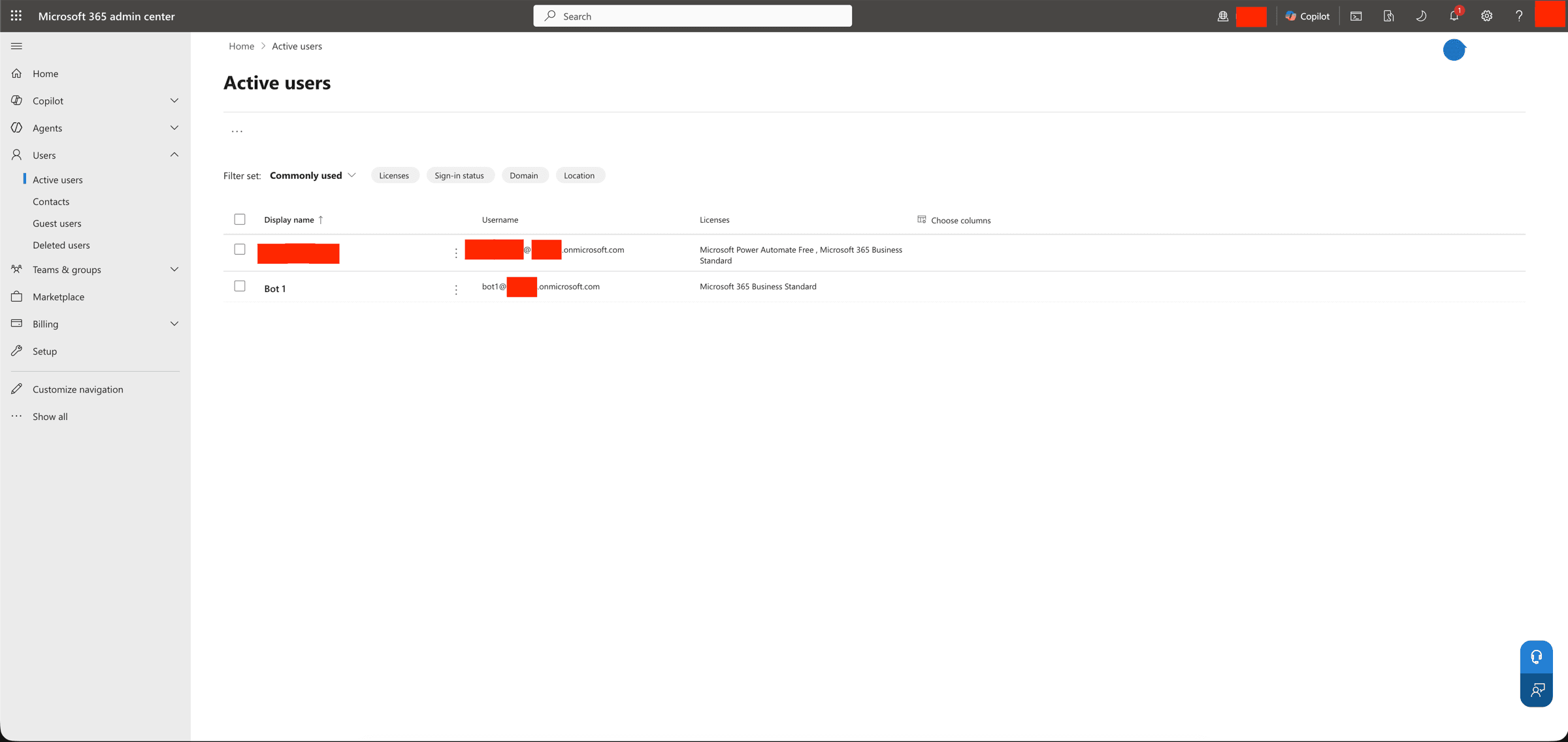
The simplest path is the Microsoft 365 admin center → Users → Active users → Add a user: set a clear username (for example bot1@acme.onmicrosoft.com) and a strong password you'll store with Meeting BaaS (uncheck "Require this user to change their password") — this wizard can also assign the license in the same flow (next). The new account then shows up under Active users:
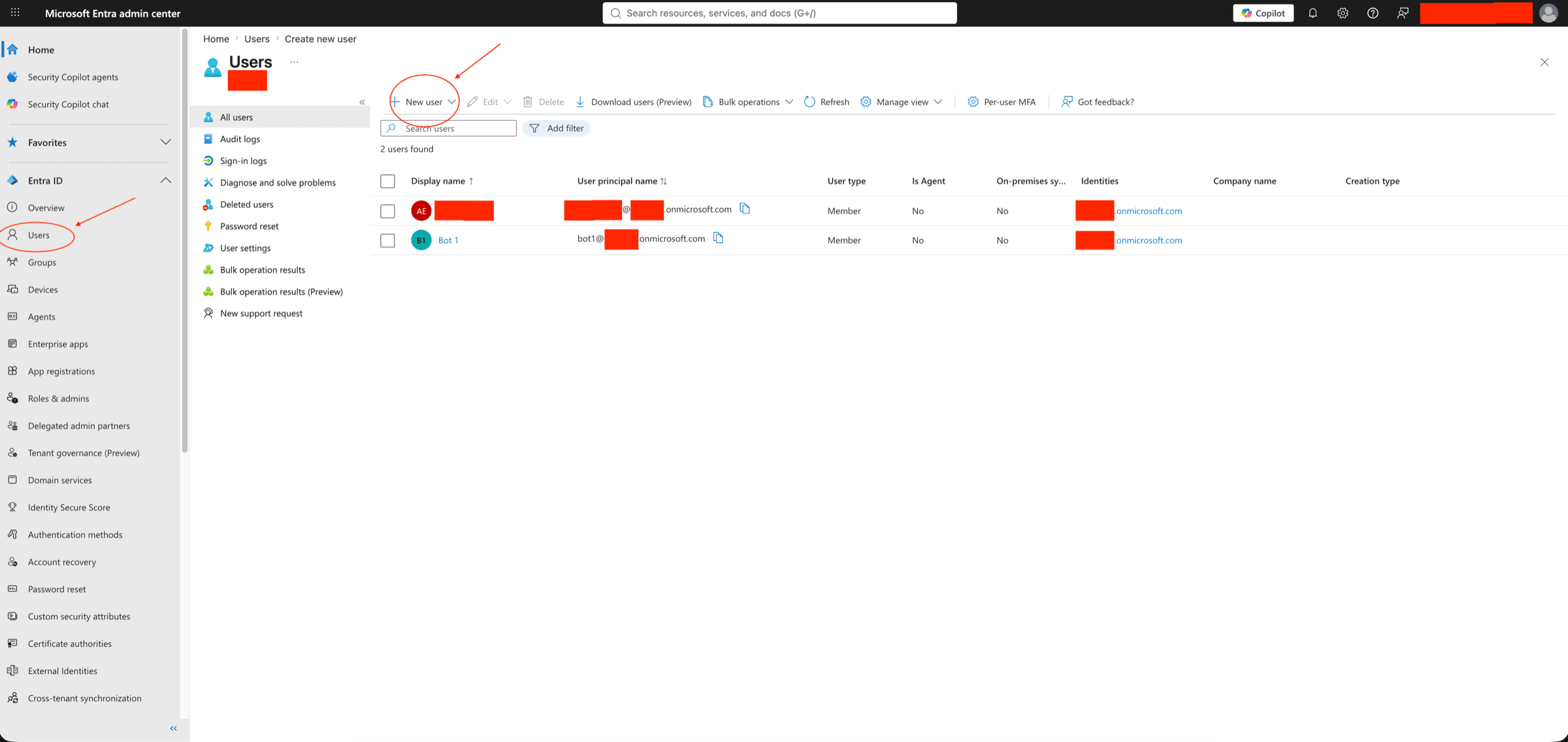
You can also create it in the Microsoft Entra admin center → Users → All users → + New user → Create new user. In Entra, "Users" sits under the Identity group in the left nav; if you don't see it, click Show more or type Users in the top search bar.
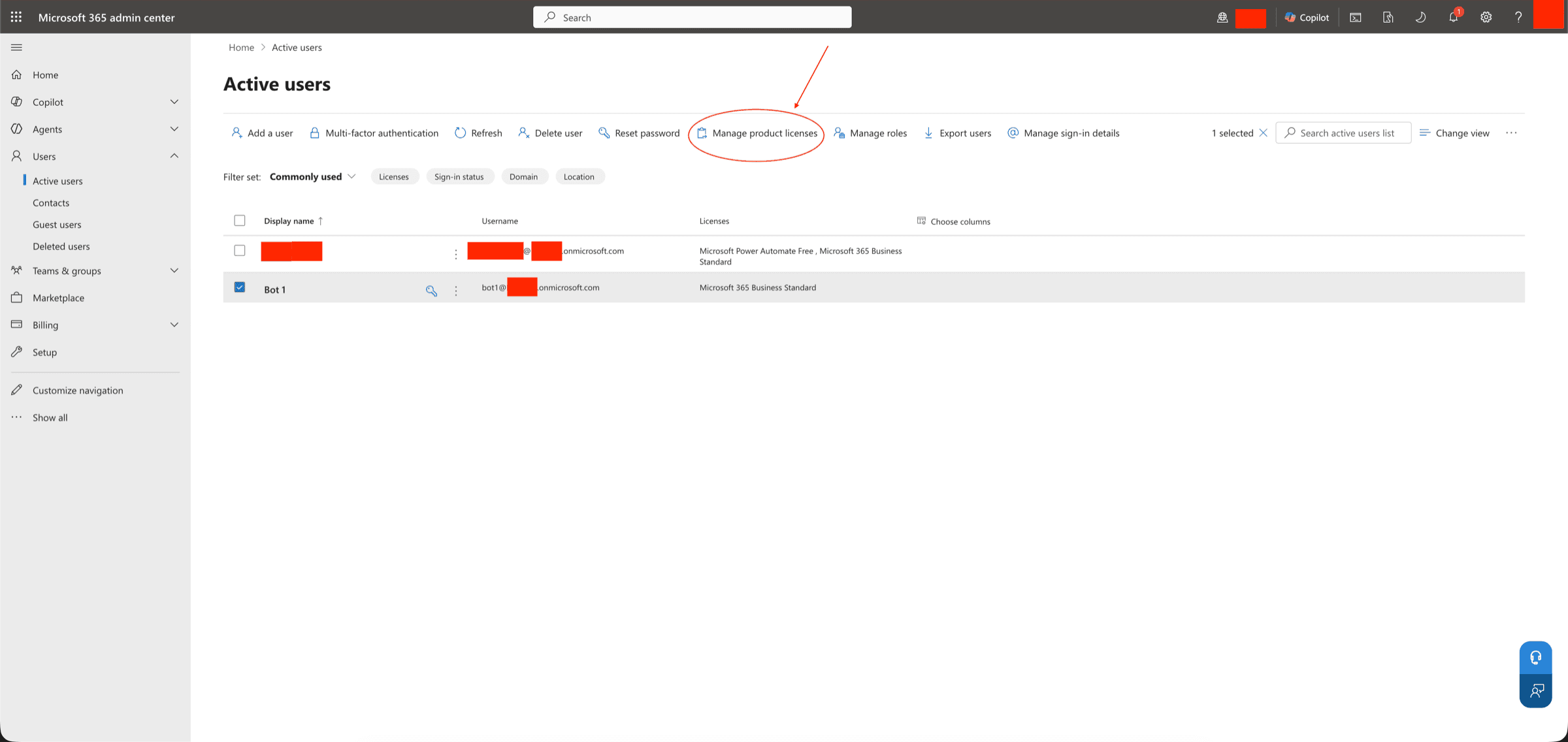
Then give the account a Microsoft Teams license (part of most Microsoft 365 / Office 365 plans): in the Microsoft 365 admin center, select the bot in Users → Active users and click Manage product licenses (you can also do this inside the Add a user wizard above). A bot without a Teams license can't be admitted as an organization member.
Put your bot accounts in a dedicated group (for example svc-teams-bots).
You'll use it for the MFA setup in Step 2, and you can reuse its
address as the email_group for round-robin pooling in Step 4.
Step 2 — Make the account MFA-free
The bot signs in by typing the password on login.microsoftonline.com, so anything that forces multi-factor or security-info registration stalls it on the "Let's keep your account secure" page. Two things can force that on a Teams sign-in today:
- Security Defaults — the tenant-wide toggle that makes everyone register for and use MFA.
- Conditional Access "require MFA" policies — including the Microsoft-managed ones Entra now auto-creates on licensed tenants (see Option C).
Microsoft's 2024–2025 mandatory MFA rollout only covers the admin portals and Azure resource management — it does not block a bot's interactive sign-in to Teams/Office, so that mandate isn't your blocker. The two items above are.
Pick the option that matches your tenant.
Option A — Disable Security Defaults (free / dedicated bot tenant)
If the tenant has no Entra ID P1/P2 or Microsoft 365 Business Premium license (so no Conditional Access), turning off Security Defaults is enough.
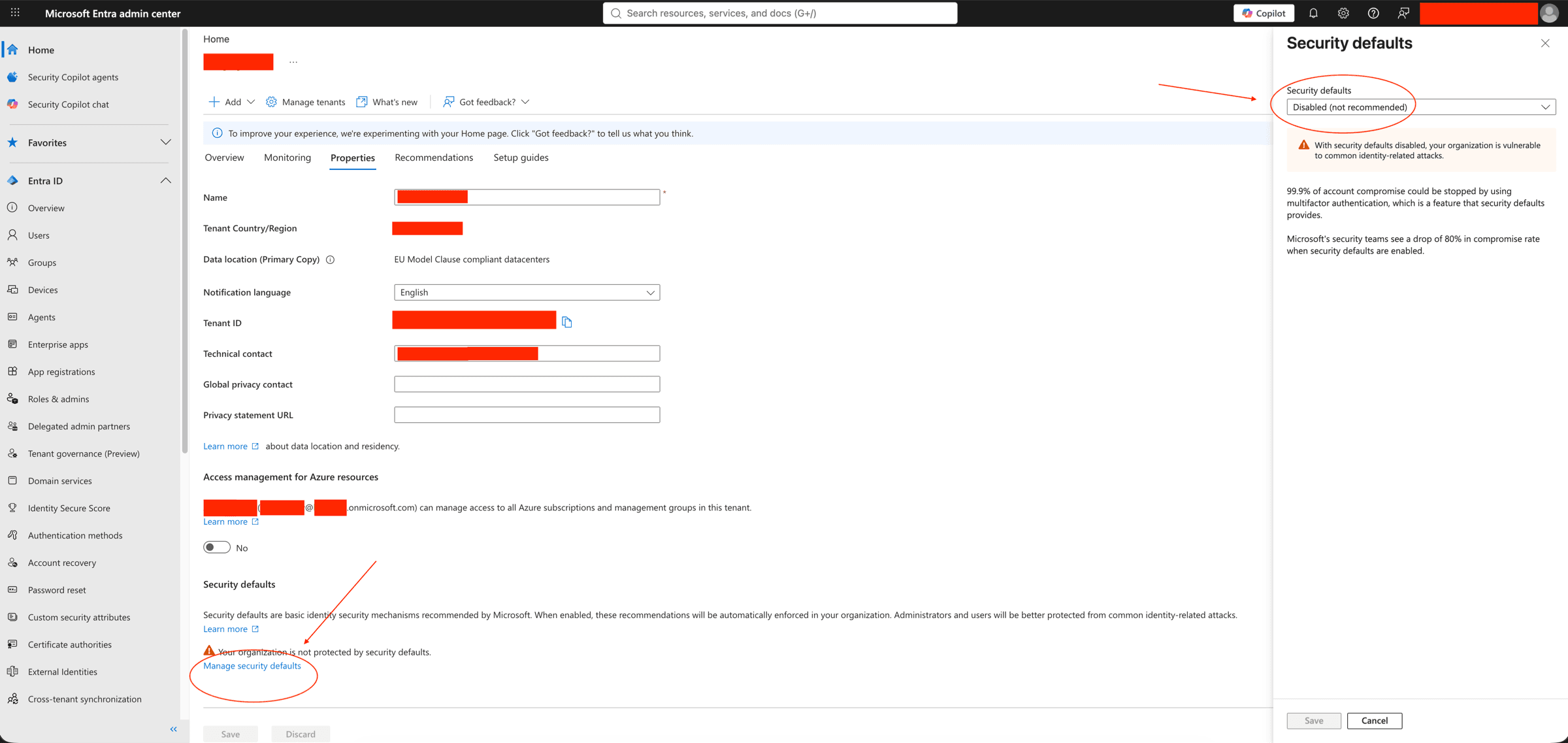
- Go to Entra ID → Overview → Properties, scroll to the bottom and open Manage security defaults, set Security defaults to Disabled (not recommended), and Save. Some tenants label the top node Identity instead of Entra ID — it's the same Properties page. (Requires the Conditional Access Administrator role.)
- Set the bot's per-user MFA state to Disabled: Identity → Users → All users → Per-user MFA (in the command bar, or under the ··· menu) → select the account → Disabled → Save. (
Disabledis the default, so usually it's already set.)
Only disable Security Defaults on a tenant dedicated to bots — it drops baseline MFA for everyone in the tenant. On a tenant with real users, use Option B.
Option B — Turn MFA off for just the bot (per-user MFA — easiest way to keep people on MFA)
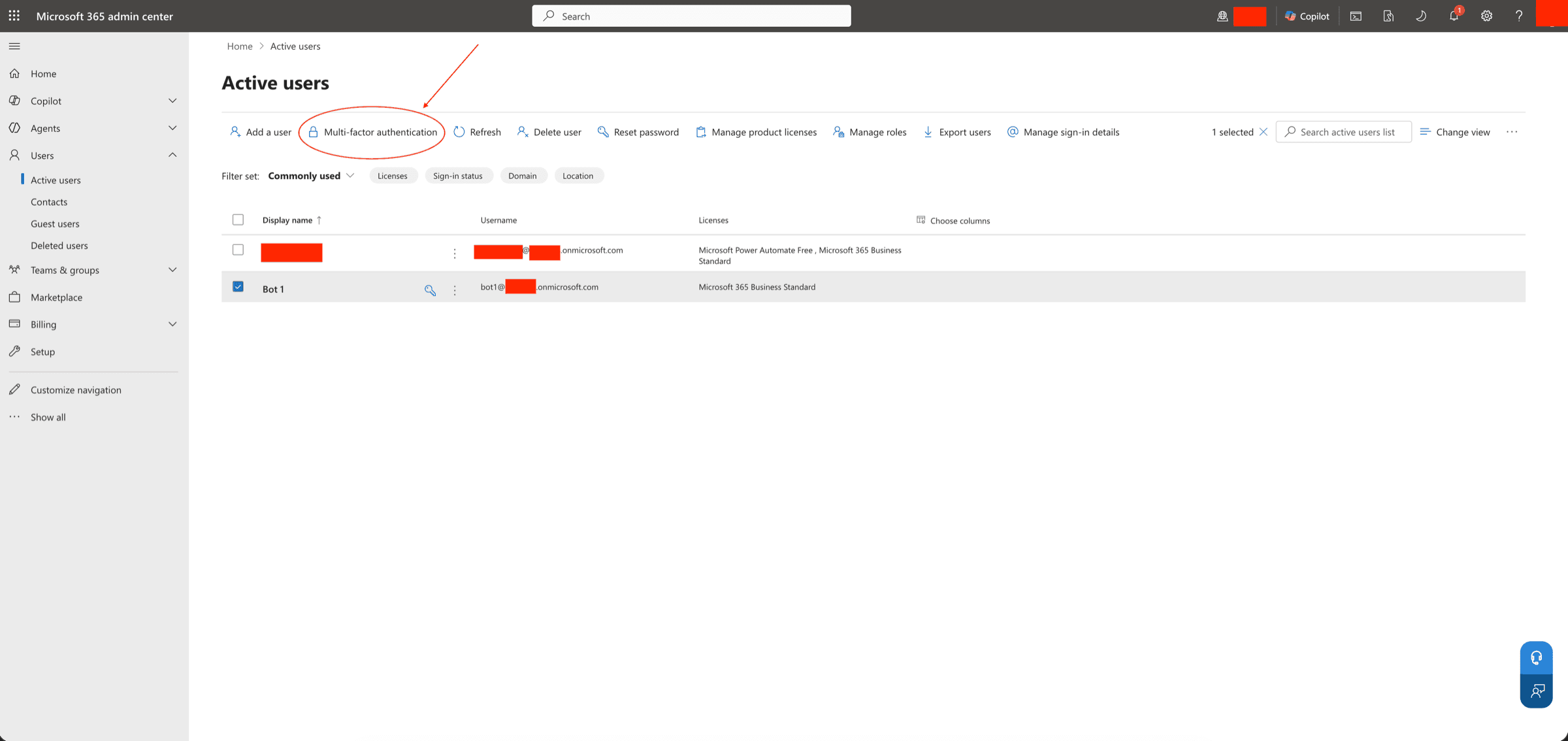
Keep MFA on for your real users and switch it off for the bot only — no Conditional Access or premium license needed. First make sure Security Defaults is Off (Option A, step 1), since per-user MFA is ignored while Security Defaults is on. Then, in the Microsoft 365 admin center → Users → Active users, tick the bot, click Multi-factor authentication in the command bar, select the account, and set its status to Disabled.
Option C — Exclude the bot via Conditional Access (tenants that enforce MFA with CA)
If your tenant enforces MFA through Conditional Access — including the Microsoft-managed policies Entra auto-creates on Entra ID P1/P2 or Business Premium tenants — per-user MFA won't exempt the bot; you have to exclude it from those policies.
- Make sure Security Defaults is Off (Option A, step 1) — Conditional Access and Security Defaults can't both be on.
- Put the bot accounts in a dedicated group, e.g.
svc-teams-bots. - Exclude that group from every "require MFA" policy — your own and the Microsoft-managed ones (rows with Created by = Microsoft, e.g. "Multifactor authentication for all users"): Protection → Conditional Access → Policies → open each MFA policy → Assignments → Users → Exclude → Users and groups → add
svc-teams-bots→ Save. You can't delete the Microsoft-managed policies, but you can exclude a group or set them Off.
Re-check this periodically. On P2 / Business Premium tenants, Microsoft auto-creates Conditional Access MFA policies in report-only and auto-enables them ~45 days later. If a new "Multifactor authentication for all users" policy appears, exclude your bot group from it (or set it Off) before it turns on — otherwise the bot starts failing sign-in weeks later.
The end state, either way: signing in with the bot account is email → password → "Stay signed in?" with no "Let's keep your account secure" prompt in between — verify in Step 3.
Step 3 — Complete the first interactive sign-in
Sign in to the bot account once interactively at https://login.microsoftonline.com and click through "Stay signed in?". This clears any first-run interstitials so the bot's automated sign-in reaches the password step cleanly. If you still see a "keep your account secure" page here, MFA is not fully off — revisit Step 2.
Set the account's language to English (United States) so the sign-in and Teams UIs are in the expected state.
Step 4 — Register the workspace and logins
Create a teams workspace
A teams workspace groups all logins for one Microsoft 365 tenant. It stores no secrets — just the tenant domain.
curl -X POST https://api.meetingbaas.com/v2/teams-workspaces \
  -H "x-meeting-baas-api-key: $API_KEY" \
  -H "Content-Type: application/json" \
  -d '{
    "name": "Acme Bots Tenant",
    "domain": "acme.onmicrosoft.com"
}'| Field | Required | Notes |
|---|---|---|
domain | ✅ | The Microsoft 365 tenant primary domain (for example acme.onmicrosoft.com, or a verified custom domain). |
name | optional | Friendly label. Not unique. |
extra | optional | Free-form JSON for your own tags. |
The response includes the workspace_id you'll reference when creating logins:
{
  "success": true,
  "data": {
    "workspace_id": "f0e1d2c3-b4a5-6789-0123-456789abcdef",
    "name": "Acme Bots Tenant",
    "domain": "acme.onmicrosoft.com",
    "state": "active",
    "created_at": "2026-07-29T10:00:00.000Z",
    "updated_at": "2026-07-29T10:00:00.000Z"
  }
}
Register a teams login per account
Create one teams login for each Microsoft 365 account, referencing the workspace_id above. The password is encrypted at rest and never returned.
curl -X POST https://api.meetingbaas.com/v2/teams-logins \
  -H "x-meeting-baas-api-key: $API_KEY" \
  -H "Content-Type: application/json" \
  -d '{
    "workspace_id": "f0e1d2c3-b4a5-6789-0123-456789abcdef",
    "name": "Production Bot Pool — Account 1",
    "email": "bot1@acme.onmicrosoft.com",
    "password": "the-account-password",
    "email_group": "bots@acme.onmicrosoft.com"
}'| Field | Required | Notes |
|---|---|---|
workspace_id | ✅ | UUID of the parent teams workspace. |
name | ✅ | Friendly label. Not unique. |
email | ✅ | The Microsoft 365 account the bot signs in as. |
password | ✅ | The account password. Write-only — encrypted at rest (AES-256-GCM) and never returned. |
email_group | optional | Address for round-robin pooling. Logins sharing the same email_group form one pool. |
extra | optional | Free-form JSON for your own tags (filterable on the list endpoint). |
Each email may exist at most once per team (409 Conflict on duplicates).
An unknown workspace_id returns 404 Not Found.
Repeat for each account. Logins sharing an email_group form a round-robin pool — add more logins to increase concurrent capacity (each login handles up to 20 concurrent sessions by default).
You're ready
With at least one active workspace and one active login, you can send authenticated bots. Continue to Sending Authenticated Bots.
Maintenance
Rotating the password
When an account's password changes, send the new value to PATCH /v2/teams-logins/{credential_id}. It's re-encrypted at rest immediately; keep the Microsoft 365 account and the stored login in sync so the bot can sign in.
Re-enabling an invalid login
When a login flips to invalid, fix the underlying cause (update the password, turn MFA off for the account, un-suspend it), then re-enable it with a PATCH (PATCH /v2/teams-logins/{credential_id}). Check last_error_message for the reason.
Deleting a workspace
DELETE /v2/teams-workspaces/{workspace_id} cascades to all of its logins. Delete a single login with DELETE /v2/teams-logins/{credential_id}.